
What's New? - June 2022
Summer is here, and with it comes a scorching hot new feature in Report Toaster.
Calculated Fields are here!
("Yes, finally!" I hear some of you saying. Quite literally in fact — a few of you even emailed to tell us!)
Not only has this been one of the largest and most requested features on our roadmap, but it's also (arguably) one of the most important due to the sheer range of possibilities it unlocks.
Let's dive in!
What are Calculated Fields?
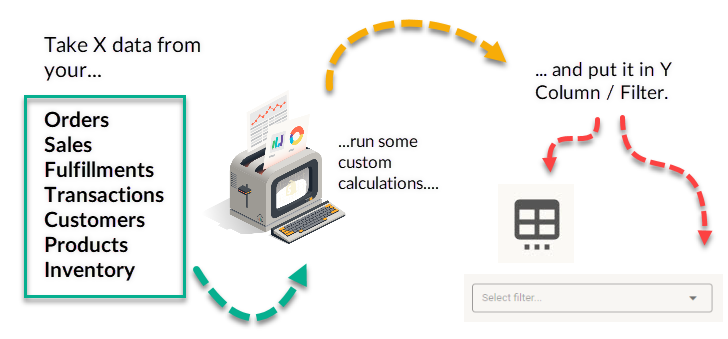
In their simplest form, a calculated field takes data from one area of Report Toaster, runs some custom calculation, and outputs the data somewhere else.
(click image to enlarge)
Think formulas in Excel, and you won't be far off.
But for those of you who aren't so familiar with Excel, let's do a super-quick example (feel free to skip this if you know Excel like the back of your hand). I promise — I'll make this as minimally boring as possible!
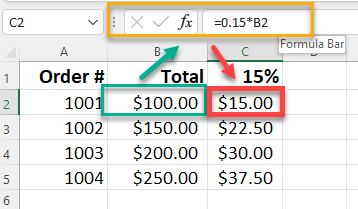
Suppose I wanted something to take whatever was in column B of a report and multiply it by 15%.
Maybe it's for tax purposes, perhaps, or to calculate a commission or a tip?
To do this, I might make a formula like so:
(click image to enlarge)
All this is really doing is saying: take whatever is in column B (in this case, cell B2), multiply it by 0.15 (15%), and display it in this column.
Done. 15% calculated.
Of course, Excel can do more than simple addition, subtraction, and other basic math.
For instance, you can use things like VLOOKUP and other lookup formulas to say things like “Hey, if this column contains this thing, put it here.”
This can be very useful to lookup names, dates, times, or whatever you want really.
Calculated Fields can do the exact same thing.
Using a Calculated Field, you can look up the data from one field (for example the order total, the customer's state, or even notes attached to an order), run a certain function, and put the output in your own custom column.
Awesome, eh?
So let's take a look at how this works in practice and go through some examples that we've already created for some of our merchants.
Example 1 — Simple Math(s)
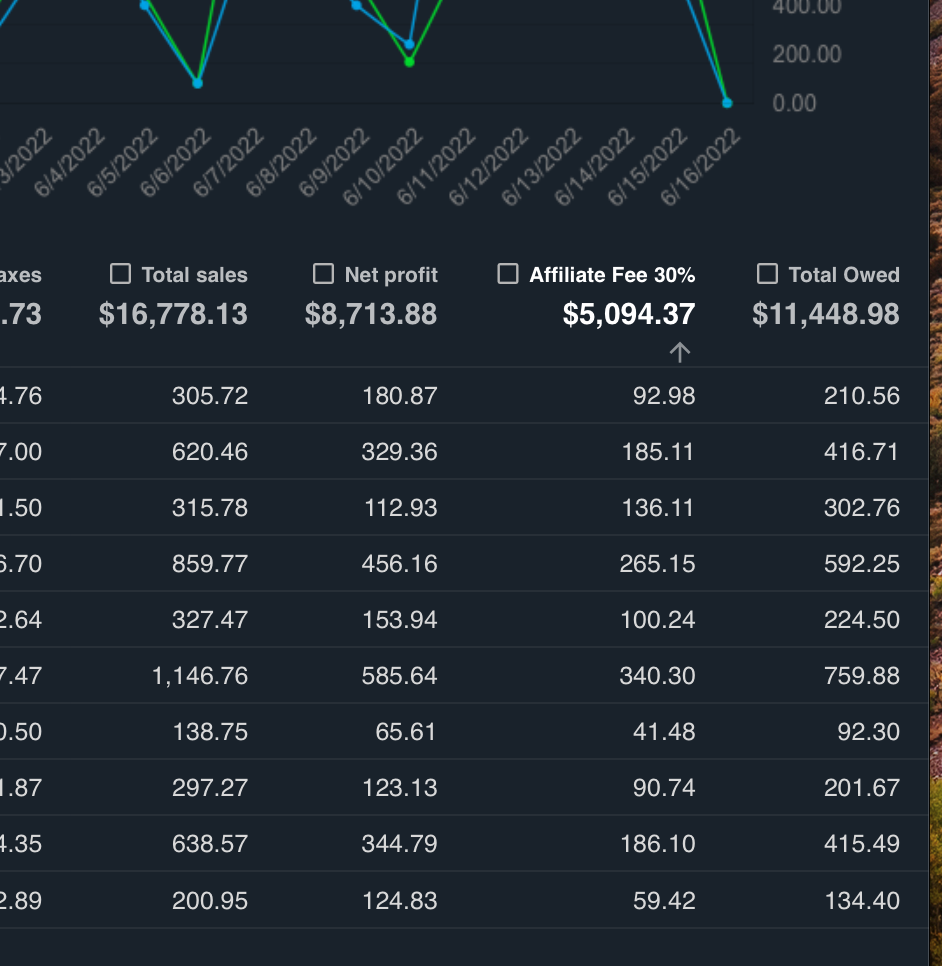
One Report Toaster customer was looking for a way to create a simple field for a 30% commission based on the Net Profit for their orders.
Much like our example above, we can see how such a calculation looks in Report Toaster.
(click image to enlarge)
Here we can see how we created a brand new column called Affiliate Fee 30% that shows you what 30% of the Net Sales looks like for that particular day.
Note that Net Profit wouldn't even have to be a column on this report to work correctly.
So if you wanted to share a report that calculates what you owe a particular affiliate without having to reveal your totals, you can absolutely do that.
Example 2 — Translating Staff / Location / Device IDs
Shopify has a ton of fields that are really little more than a string of numbers.
From a data processing standpoint this is perfectly serviceable, but not much use to your average merchant who's trying to run their store.
After all, do you remember offhand who Staff ID 77524601 refers to?
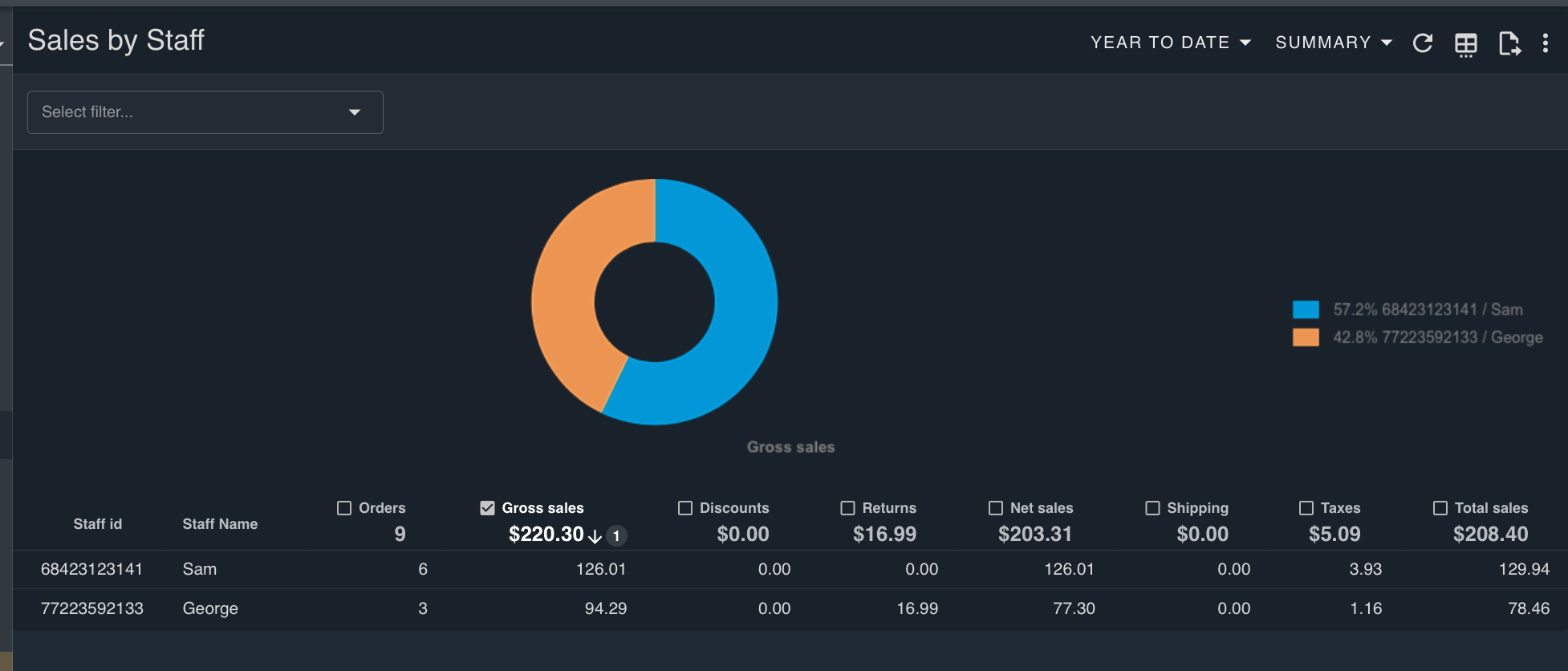
One merchant provided us with a list of which staff names corresponded to which IDs, and we were able to map those out for them accordingly.
Here's something similar we shipped on our demo store:
(click image to enlarge)
We only have two staff members in our demo store, but imagine if you were looking at close to 100.
Yeah…
Other Possibilities
We've come up with numerous examples of how calculated fields can be used. In fact, you can already see a number of these in action over on our blog.
But in the interests of keeping this article short and sweet, let's highlight a few of the key possibilities:
- Taking custom information from Note Attributes or Line Item Properties and displaying it in its own columns (great for monograms, variant options, delivery details, etc).
- Categorizing data based on tags (for example calculating the day of the week for a fulfillment report).
- Working out and displaying fixed shipping rates or costs.
- Determining percentage calculations for taxes, commissions, tips and more.
- Displaying the age of an order in days.
The possibilities are truly limitless. We can take just about any data field in the app, run some calculations, and display it in a custom column or filter.
Setting up Calculated Fields
So speaking of putting this together — how do you go about setting up Calculated Fields for your store?
Honestly, Calculated Fields are a relatively new addition to Report Toaster, and in some cases they can be quite difficult to create.
There's a lot of code, a lot of complex formulas, and a lot of error-checking to make sure no mistakes are made.
That's why we decided to simply make things easy — and set them up for our merchants directly upon request.
Note: Calculated Fields require a paid subscription to Report Toaster. You can sign up at any time by visiting https://reporttoaster.cloudlab.com/subscribe.
Eventually we plan to make it possible for merchants to create their own calculated fields without our help.
But for now, understanding how they interact with our data and implementing them safely requires a certain level of technical expertise.
Therefore, all you have to do is tell us what you're looking for and we'll do our best to make it work.
We've already implemented dozens of these across several merchant accounts, so if you would like us to create some custom calculated fields for your account, email us at [email protected].
Until next time!